Microsoft has officially announced Windows Server 2025. The new release promises to significantly improve the existing features and performance of Windows Server.
New Features
The new features of Windows Server 2025 include:
- Windows Server Hotpatching for Everyone: This feature enables hot patching for all Windows Server versions. This provides a significant security advantage for businesses by keeping systems online and reducing maintenance windows.
- Next-Generation Active Directory and SMB: Windows Server 2025 offers next-generation features for Active Directory and SMB. These features help improve performance and security.
- Mission-Critical Data and Storage: Windows Server 2025 offers new features for storing and managing mission-critical data. These features help businesses keep their data safe and use it efficiently.
- Hyper-V & AI: Windows Server 2025 offers new features for Hyper-V and AI. These features help manage virtual machines more efficiently.
Enhanced Features
The enhanced features of Windows Server 2025 include:
- Up to 90% more IOPS on NVMe SSDs: Windows Server 2025 offers up to 90% more IOPS on NVMe SSDs. This significantly improves performance.
- NVMe over Fabric (NVMe-oF) support: Windows Server 2025 offers NVMe over Fabric (NVMe-oF) support. This makes it easier to connect NVMe SSDs to remote servers.
- 3x performance improvement for Storage Replica: Windows Server 2025 offers 3x performance improvement for Storage Replica. This makes data replication faster and more efficient.
- Thin Provisioned storage: Windows Server 2025 offers Thin Provisioned storage support. This helps use storage space more efficiently.
- Extended Clustering support for Direct Storage Spaces (S2D): Windows Server 2025 offers Extended Clustering support for Direct Storage Spaces (S2D). This makes it easier to create larger-scale S2D clusters.
- Certificate-based Live Migration for AD-less clusters: Windows Server 2025 offers Certificate-based Live Migration for AD-less clusters support. This enables Live Migration in AD-less clusters.
- Cluster-Aware Updating improvements: Windows Server 2025 offers Cluster-Aware Updating improvements. This makes cluster updates more flexible and reliable.
- GPU-P support for Hyper-V: Windows Server 2025 offers GPU-P support for Hyper-V. This makes it easier to assign GPUs to Hyper-V virtual machines more efficiently.
- NetworkATC support for Windows Server: Windows Server 2025 offers NetworkATC support for Windows Server. This makes it easier to use Windows Server’s NetworkATC features.
- New ReFS local data deduplication and compression: Windows Server 2025 offers new ReFS local data deduplication and compression support. This helps use storage space more efficiently for hot data.
Contents
Windows Server 2025 installation
To install Windows Server 2025, follow these steps:
- Download the Windows Server 2025 installation file.
- Restart your computer and press another key to enter F12 or BIOS.
- Boot to the installation media.
- Follow the installation wizard and apply the instructions.
Windows Server 2025 is a significant new release for businesses. The new features and enhancements help improve performance, security, and efficiency significantly.

The initial preparations for the installation of Windows Server 2025 are underway.

How to Install Windows Server 2025
Step 1: Select the Setup Options
The first thing you’ll notice when you start the Windows Server 2025 installation is that the setup screens have changed. You can still install Windows Server 2025 using these new screens, but if you prefer the old setup experience, you can select the “Launch the legacy experience” option on the Select setup options screen.
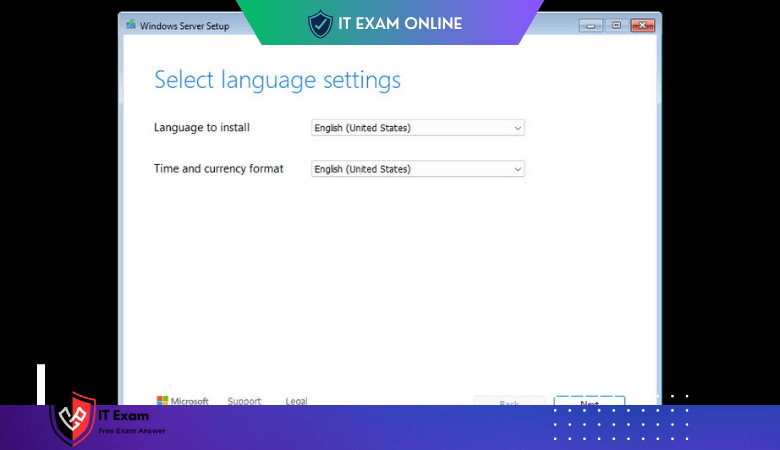
Step 2: Select the Language Settings
On the Select language settings screen, you’ll need to configure the following settings:
- Language to install: Choose the language you want to use for the installation.
- Time and currency format: Choose the format you want to use for the time and currency.
Step 3: Select the Installation Type
On the Select installation type screen, you’ll need to choose whether you want to perform a clean installation or an upgrade.
- Clean installation: This will erase all data on the target drive and install a new copy of Windows Server 2025.
- Upgrade: This will install Windows Server 2025 on top of an existing operating system.

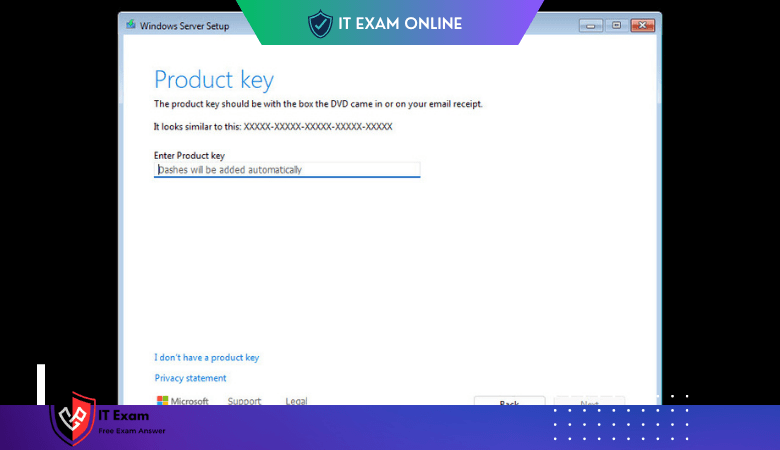
Step 4: Enter the Product Key
If you have a product key for Windows Server 2025, enter it on the Enter the product key screen. If you don’t have a product key, you can skip this step.
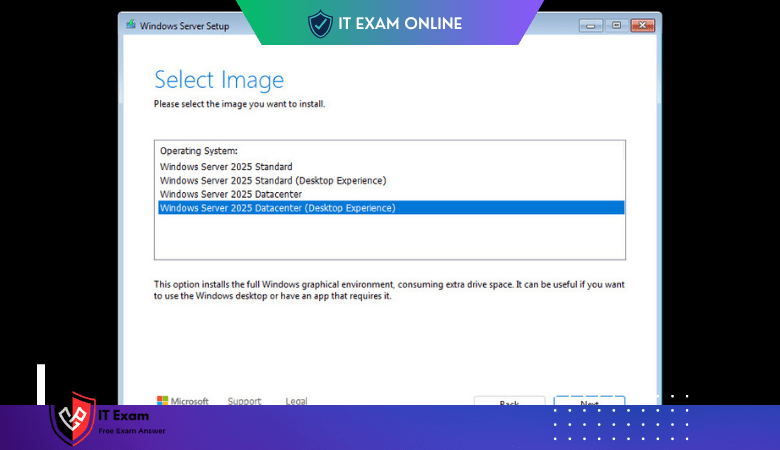
Slect The Image Versions

Step 5: Create a User Account
On the Create a user account screen, you’ll need to create a user account for the local administrator.
- Username: Enter a username for the account.
- Password: Enter a password for the account.
- Confirm password: Re-enter the password to confirm.
Step 6: Select the Additional Setup Options
On the Select additional setup options screen, you can configure the following settings:
- Timezone: Choose the timezone you want to use.
- Network: Configure the network settings for the computer.
- Windows Update: Choose whether you want to keep Windows up to date automatically.
Step 7: Start the Installation
Click the Install button to start the installation. The installation process will take several minutes to complete.
Conclusion
This is a step-by-step guide on how to install Windows Server 2025. By following these steps, you can quickly and easily install Windows Server 2025 on your computer.
Windows Server 2025 License Key
Get Your Windows Server 2025 Preview Build Keys Here!
This page provides product keys for trying out the exciting new features of Windows Server 2025 Preview Builds. Remember, these keys are only valid for preview builds and won’t work on the final release version.
Choose Your Edition:
Server Standard: MFY9F-XBN2F-TYFMP-CCV49-RMYVH
Perfect for general-purpose server tasks, ideal for small and medium businesses.
Datacenter: 2KNJJ-33Y9H-2GXGX-KMQWH-G6H67
Advanced features for larger workloads and mission-critical deployments.
Please Note:
Keys are available for free on the Microsoft Tech Community page.
Keys: Keys are valid for preview builds only
These keys are only valid for Windows Server 2025 Preview Builds.
The Azure Edition of Windows Server 2025 requires a separate activation process and doesn’t accept these keys.