Many of us have encountered the alert stating “TPM 2.0 Device Detected” within the VMware environment. However, there’s a need for more information on what TPM is, why we receive this alert, and what actions can be taken to address it.
Contents
What is TPM? What does it do?
TPM 2.0 (Trusted Platform Module 2.0) serves as a hardware security standard utilized to enhance security features in computers and other devices. It acts as a hardware module employed to fortify a computer’s security, supporting key management, encryption, and other security functions.

By securely storing encryption keys and providing hardware-based security, TPM 2.0 augments computer systems with heightened security. This strengthens data integrity and authentication, rendering computer systems more resilient against various cyber threats.
How Do I Remove TPM 2.0 Device Detected Warning?
Received the mentioned alert on the Dell EMC PowerEdge R740xd device running vSphere 7.0.3
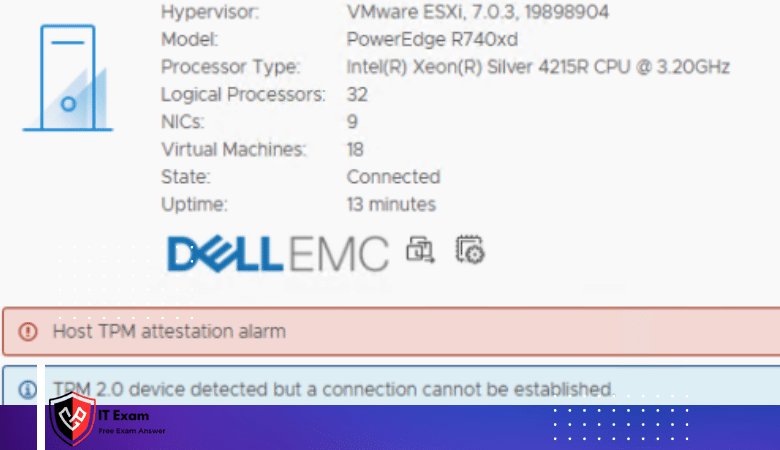
When accessing the BIOS of the host in maintenance mode, we’ll follow these steps:
- Select TPM2 Algorithm and set it to SHA256
- Activate Intel(R) TXT
- Enable Secure Boot
First we will enter the system bios

Then we enter the system security section under the system bios setting.
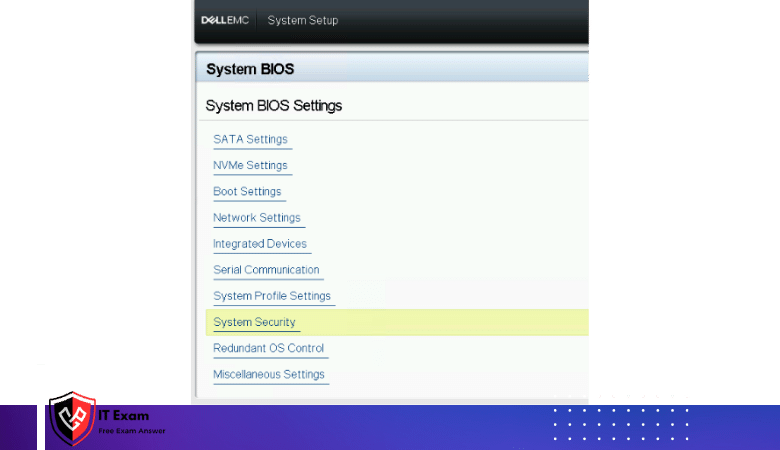
Then, I go to the system security section under the system bios setting. Then you need to enter the TPM Advanced Settings menu.
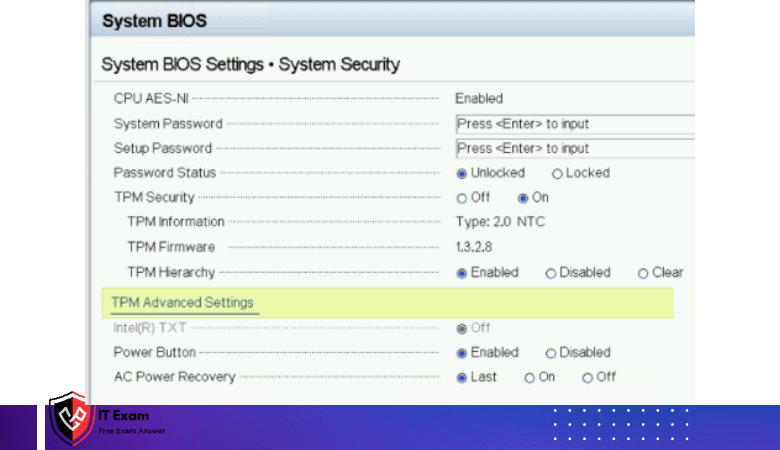
We select SHA256 algorithm from the TPM Advanced Settings menu and return to the System Security menu.

In the TPM Advanced Settings section under the System Security menu, we mark Intel(R) TXT – On

We go to the Secure Boot section under the System Security menu and Enable Secure Boot.

We save all the changes we made and restart
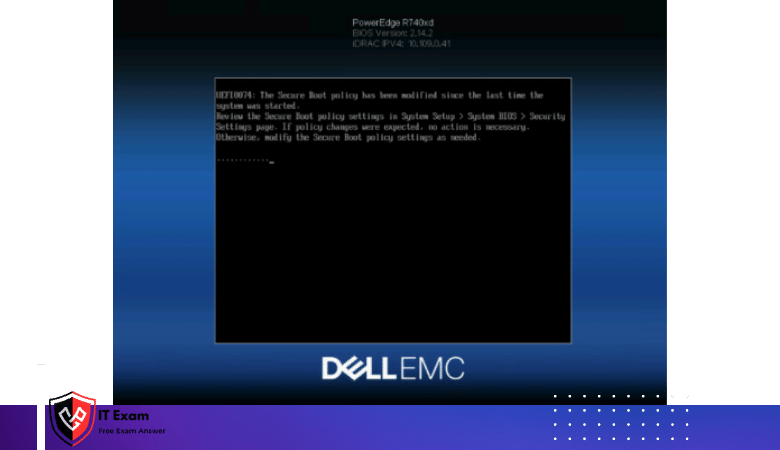
TPM 2.0 Device Detected issue has been fixed!

When checking in vCenter, upon observing the resolution of the ‘Host TPM attention alarm‘ issue, if it still persists, you can exit Maintenance Mode by marking ‘Reset to Green‘.